
Appearance
Trips
A trip is one journey you announce: route, departure, how many kilos and bags you can take. Providers assign batches to trips. Manage them under My trips (/t/trips).
Publishing a trip
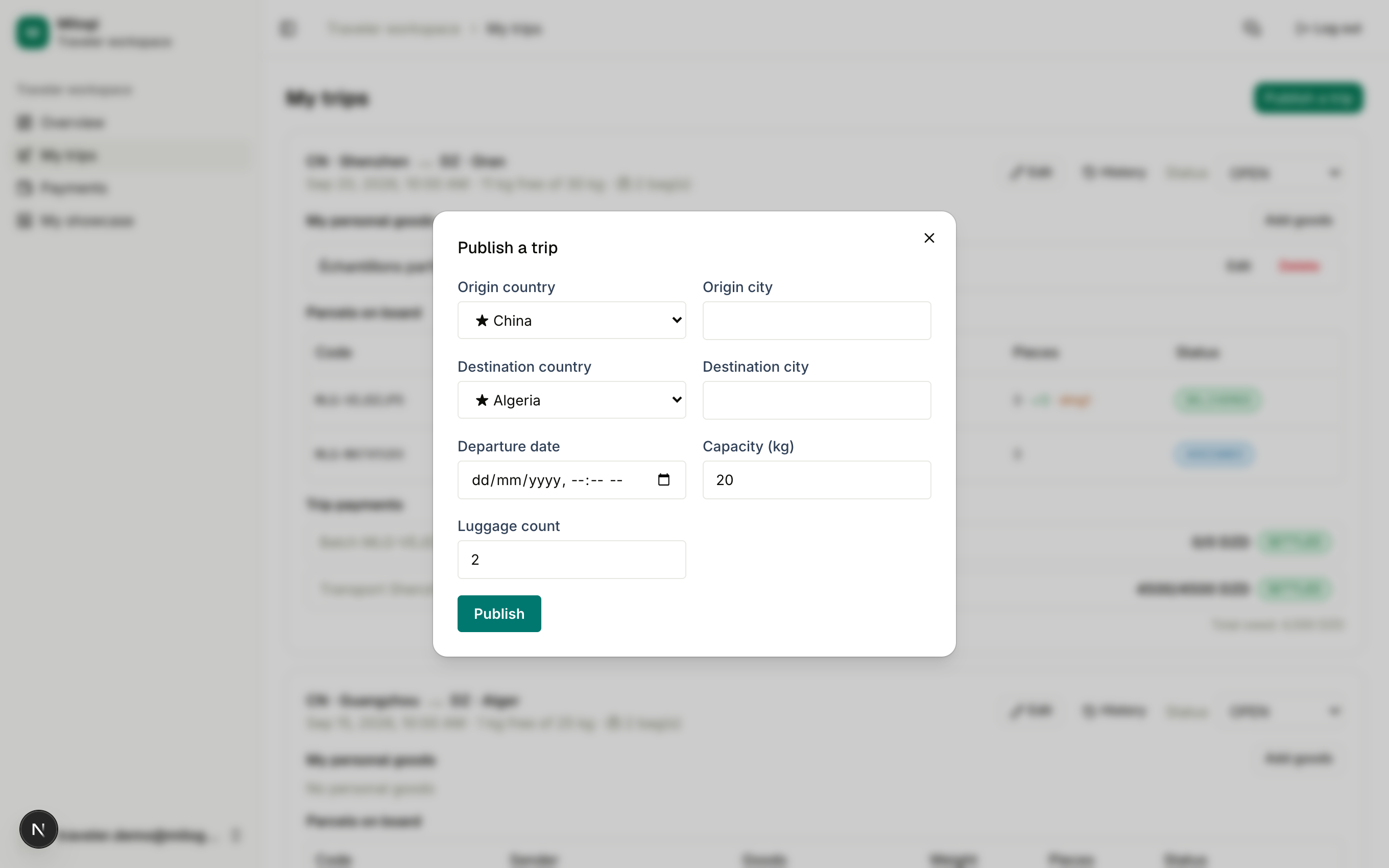
- Click Publish a trip.
- Fill in the Origin country / city and the Destination country / city.
- Set the Departure date (date and time).
- Enter your Capacity (kg) — the kilos you can give to providers (0.5 kg steps, up to 500) — and your Luggage count (number of bags, 1–10).
- Optionally add Notes, then click Publish.
The trip is OPEN and immediately visible to providers searching your route.
Open-trip limit
The number of trips you can keep OPEN at the same time depends on your plan: your user group's limit on the free plan, 10 on Traveler Plus, unlimited on Pro and Elite. Close or complete old trips to publish new ones. See Plans & pricing.
The trip card
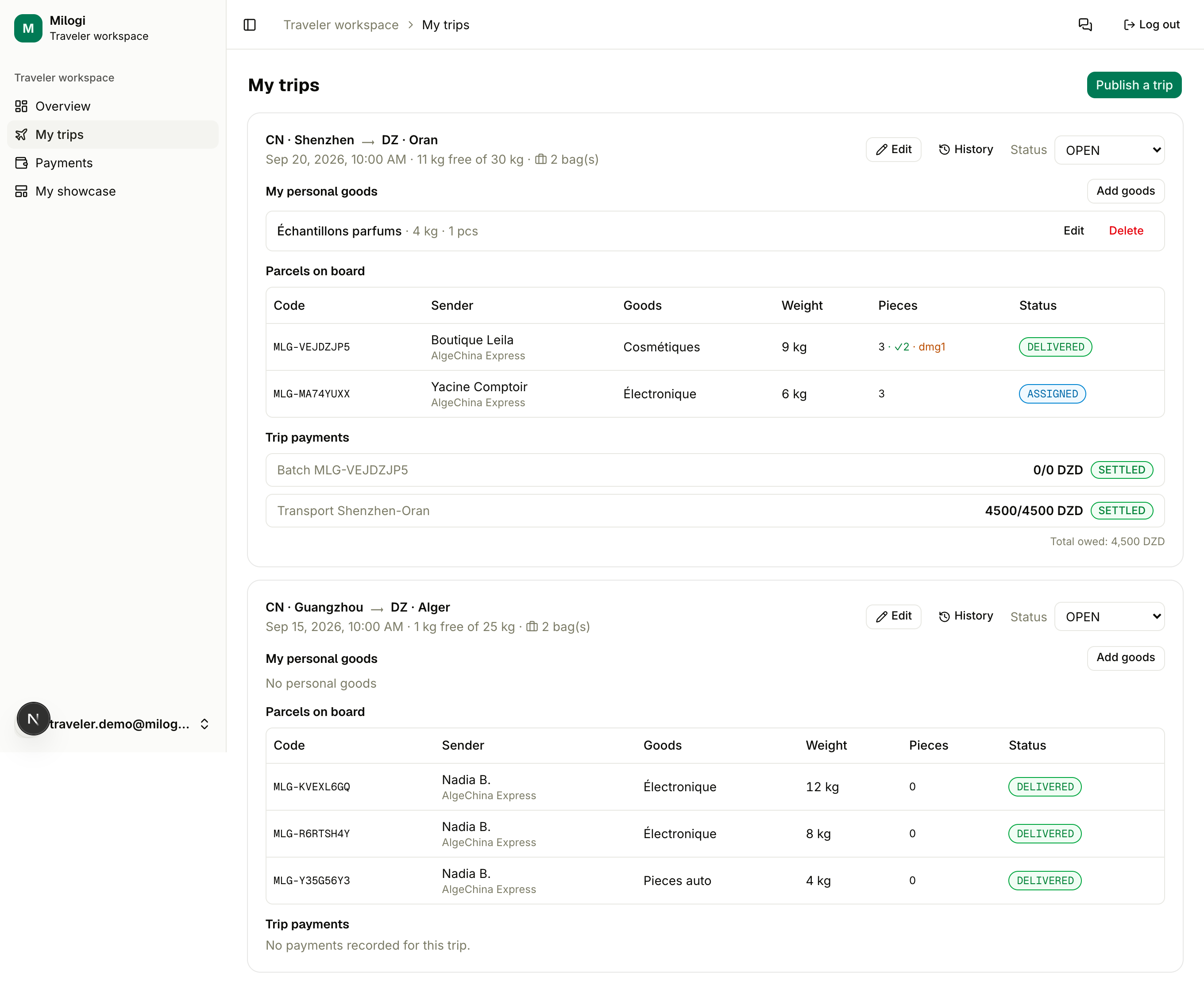
Each trip shows its route and date, the status pill, the free capacity (17 kg free of 30 kg) and the luggage count, then:
- Edit — change the capacity and the luggage count. Capacity cannot go below what is already on board.
- History — the timeline of status changes.
- Status dropdown — move the trip through its lifecycle (see below).
- My personal goods — your own payloads on this trip.
- Parcels on board — the batches providers assigned, with code, sender, goods, weight, pieces (and damaged/missing counts) and status.
- Trip payments — the payout lines linked to this trip with a Received button and the total owed.
Trip statuses
| Status | Meaning |
|---|---|
| OPEN | Accepting batches; shown in provider searches. |
| FULL | You closed the trip to new batches (you can reopen it). |
| DEPARTED (shown as In transit) | You have left. |
| COMPLETED | Journey done. |
| CANCELLED | Trip cancelled. |
Change the status with the dropdown on the card. Only valid moves are accepted (OPEN ⇄ FULL, OPEN/FULL → DEPARTED or CANCELLED, DEPARTED → COMPLETED).
Personal goods (payloads)
Carrying your own goods too? Add them so your free capacity stays honest:
- In the trip card, click Add goods.
- Enter a Description, the Weight, the number of Pieces and an optional Note, then Save.
Payloads count against your capacity exactly like batches; Edit or Delete them any time. Adding a payload that does not fit in the remaining capacity is refused.
Trips planned by a provider
Providers can also register "in-house" travelers and plan trips for them without a Milogi account. If a provider does that for you, those trips are managed by them and do not appear here; create your own account and profile to manage trips yourself.