
Appearance
Team
My team (/p/team) gives staff members access to your provider workspace with their own login — a receptionist at a drop point, a colleague handling quotes…
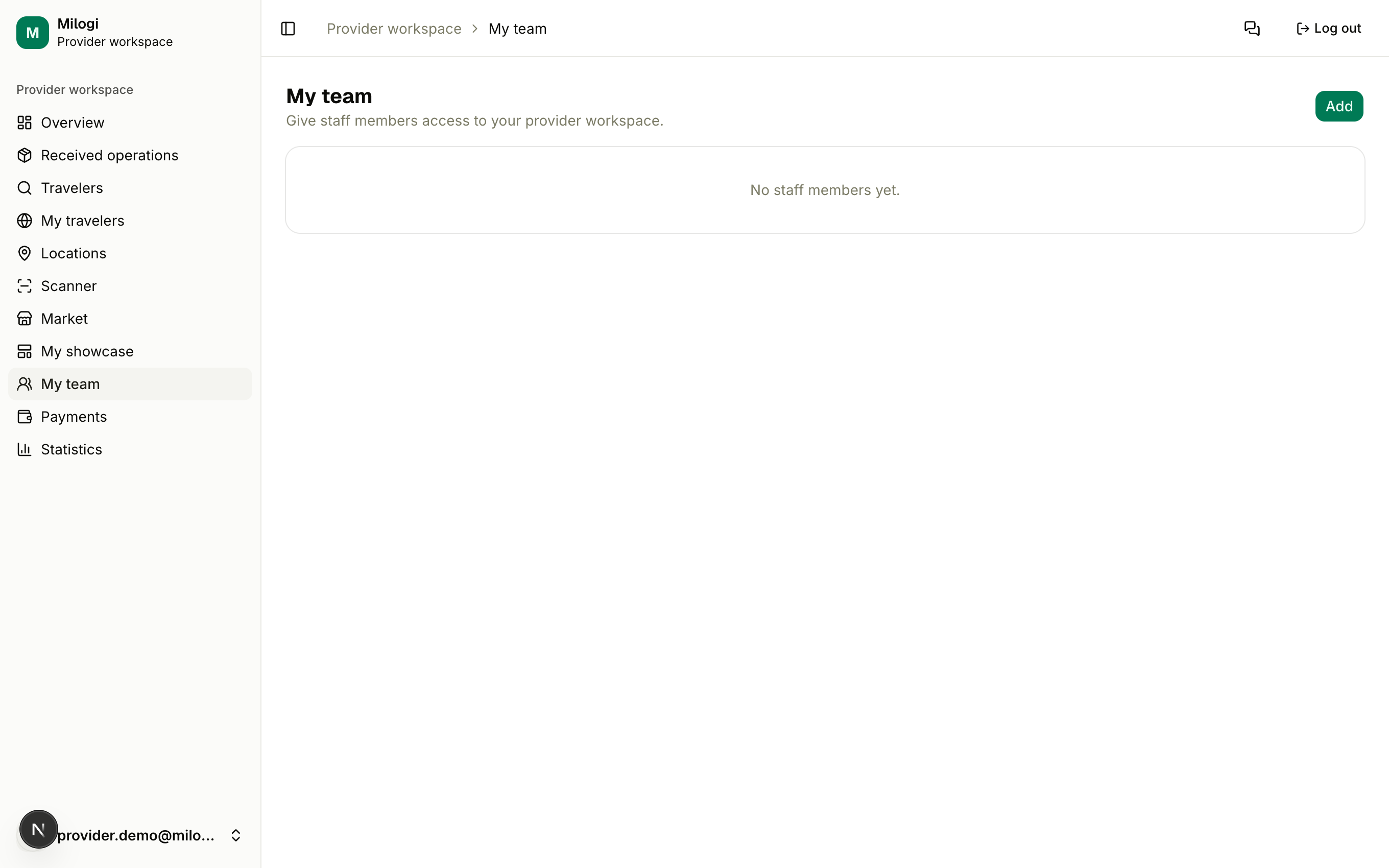
Adding a staff member
- The person creates a Milogi account first (email + password — no role needed).
- On My team, click Add, enter the staff member's email and click Add.
They now see your provider workspace when they log in. The number of seats depends on your plan (3 on Pro, 10 on Business, 25 on Premium) or, on the free plan, on your user group — see Plans & pricing.
Location access
By default a member sees everything (All locations). To restrict them:
- Click Edit access on the member card.
- Tick the locations they may work with — no boxes checked = access to all locations.
- Click Save.
A restricted member only sees the tickets of their locations and can only scan those tickets.
What staff can and cannot do
| Can | Cannot |
|---|---|
| open operations, quote, create and assign batches, issue tickets | create or edit locations |
| scan tickets of their locations | manage the team |
| use the market, messages, statistics | subscribe to a plan (the subscription belongs to the owner) |
Remove a member with Remove — their account stays, only the access goes.