
Appearance
Messages
Milogi has a built-in chat so customers, providers and travelers can talk without leaving the platform. It is available to every logged-in account, whatever the plan.
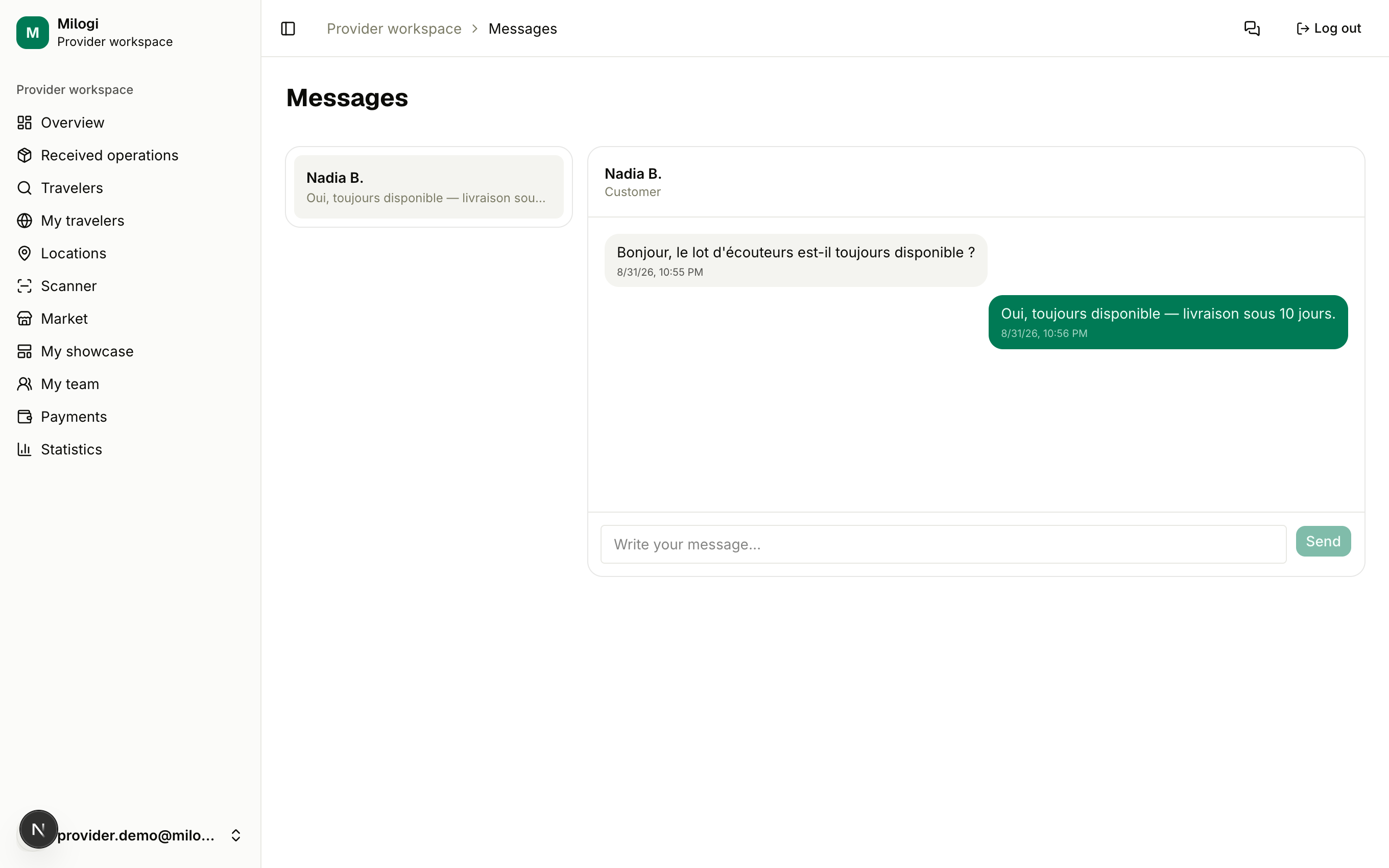
Opening your messages
- From any workspace: open the user menu at the bottom of the sidebar and choose Messages, or go to
/messages. - The sidebar shows an unread badge that refreshes every 30 seconds.
The page has two panes: the conversation list on the left (name, role hint and last message) and the thread on the right with the composer.
Starting a conversation
You start a conversation from wherever you found the person:
| Where | Button |
|---|---|
| Directory profile card | Contact |
| Market listing | Message |
| A public showcase page | the contact section |
The messages page opens with New message to … — write your first message and click Send; the conversation is created and appears in your list. Coming back to the same person later reopens the existing conversation.
TIP
The other party's role appears next to their name (Provider, Traveler, Customer) so you know who you are talking to when a user holds several roles.
Reading and replying
- Click a conversation in the list.
- Messages you sent are aligned on one side, received ones on the other; each carries its time.
- Type in Write your message… and press Send. The thread refreshes on its own while it is open.
Good to know
- You cannot start a conversation with yourself.
- Messages are plain text.
- If the other person's plan grants WhatsApp reach, you will also see a Chat on WhatsApp link next to their profile in the directory and the market — that opens WhatsApp outside Milogi.
- Operational events (quote received, delivery completed…) are not chat messages: they arrive by email and in the status of the operation.