
Appearance
Provider guide
As a service provider you are the orchestrator: customers send you requests, you quote them, split the goods into batches, hand the batches to travelers, receive them at your locations and settle the money on both sides. Your workspace lives at /p and opens automatically after login.
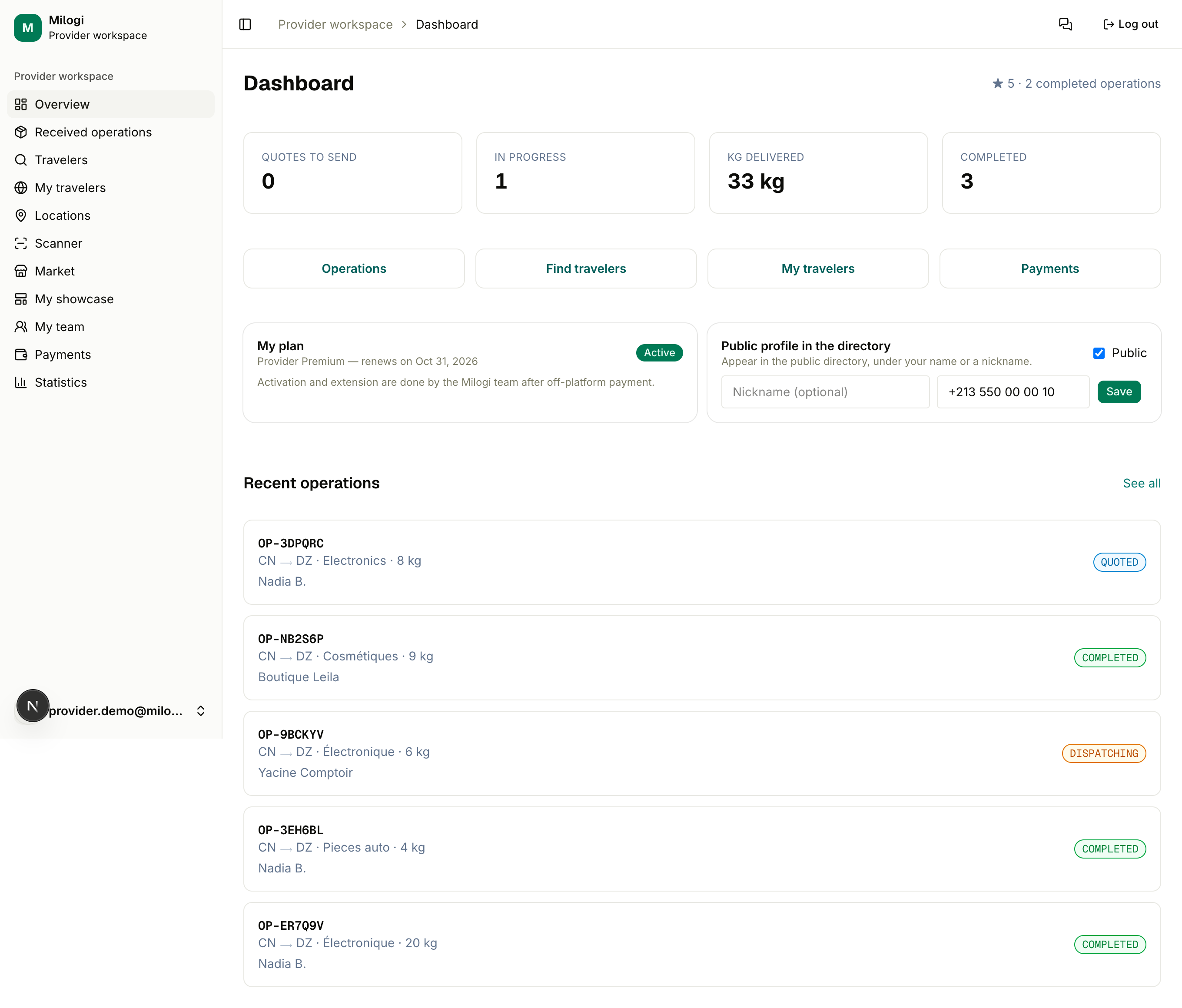
Your workspace at a glance
| Sidebar entry | What you do there | Guide |
|---|---|---|
| Overview | Key numbers (quotes to send, operations in progress, kg delivered, completed), your plan and directory visibility cards, recent operations | this page |
| Received operations | Every request and operation addressed to you; create walk-in operations | Operations & quotes |
| Travelers | Search open trips with spare capacity | Finding travelers |
| My travelers | Your private in-house travelers and their trips | Finding travelers |
| Locations | Warehouses and drop points, and the tickets attached to them | Locations & QR tickets |
| Scanner | Scan or type a ticket code to receive goods and settle payments | Locations & QR tickets |
| Market | Product listings shown on the public market | Market listings |
| My showcase | Your dedicated landing page (Premium) | Showcase |
| My team | Staff seats and their location access | Team |
| Payments | The ledger: what customers owe you, what you owe travelers | Payments |
| Statistics | Rating, volumes, revenue and settlements | Statistics |
Batches — creating, declaring, assigning and following them — are managed from inside each operation: see Batches & dispatch.
Your first day as a provider
The first time you sign in, Account setup opens over your dashboard — a short, stepped walkthrough of what your workspace needs before it can run an operation. Each step holds the real form: fill it in, press Save & continue, and the step ticks itself off as you move on. The numbered stepper at the top shows where you are; click any number to jump.
| Step | What it is | Why it is needed |
|---|---|---|
| Business profile | Already created during onboarding | Identifies you to customers; the Milogi team verifies providers and a green check then appears in the directory |
| Main site | A warehouse where you receive and consolidate goods | Everything you receive passes through it |
| Source location | A pickup point abroad — the far end of your corridor | Where your goods are collected before they fly |
| Destination location | A drop point in your own country | Where your customers collect their parcels |
| Traveler | One in-house traveler (My travelers) | Batches are handed to a traveler; without one, dispatch stops |
| Team member (optional) | A colleague who runs the workspace with you (Team) | Only if you do not work alone — seats depend on your plan |
One location can close two steps: a warehouse in your own country is both your main site and a destination, so most providers start with two locations, not three. All of them are ordinary locations — add, rename or deactivate them later as usual.
It remembers where you were. Close it at any moment and it reopens on the same step, with anything you had half-typed still in the form. Steps you have already covered show what covers them (for example your warehouses), with Add another if you need more.
Set up later — the button at the bottom left, or simply closing the window — takes you to the dashboard, and the walkthrough stops opening by itself. An amber Finish setting up your account card stays at the top of the Overview until every required step is done; Continue setup reopens the walkthrough where you left it. The steps read your workspace each time: deactivate your only warehouse and those steps simply reopen.
When everything required is in place, the last step offers Finish — or Finish and create an operation, which takes you straight to your operations.
Two things worth doing next, which are not on the checklist:
- Become visible — on the Overview, switch the Public profile in the directory card to Public, pick a nickname if you want one and add your WhatsApp number. Customers pick providers from the directory and from the request form.
- Take your first operation — wait for requests, or create a walk-in operation for a customer you already have.
Staff accounts
A staff member can open the same walkthrough and see what is in place, but its forms are for the account owner — creating locations, travelers and seats is the owner's job.
Version française : regarder en français
The dashboard cards
- Quotes to send — operations still in Request state. Click through to quote them.
- In progress — operations being dispatched or partially delivered.
- Kg delivered / Completed — your delivered volume and completed operation count (also on your public profile).
- My plan — your subscription status, trial countdown or renewal date, and one-click trial buttons when you are on the free plan. See Plans & pricing.
- Public profile in the directory — visibility toggle, nickname and WhatsApp number. See Directory & market.
- Recent operations — the latest five; See all opens the full list.
Staff accounts
People you add to My team log in with their own account and see this same workspace, scoped to the locations you allow. Only the account owner can create locations and edit the team.