
Appearance
Requests & quotes
An operation starts with your request and becomes real when you accept the provider's quote. The statuses are explained in Vocabulary & lifecycles.
Sending a request
- Open My operations (
/c/ops) and click New request (or the New request button on your Overview). - Pick a Provider from the list — it contains the providers visible in the directory. Compare them there first if you hesitate.
- Set the Source country (where the goods are) and the Destination country.
- Choose the Goods type (electronics, clothing, cosmetics, auto parts…) and the total Weight (kg) (0.5 kg steps).
- Add a Description — what exactly, how many cartons, anything the provider should know.
- Click Send request.
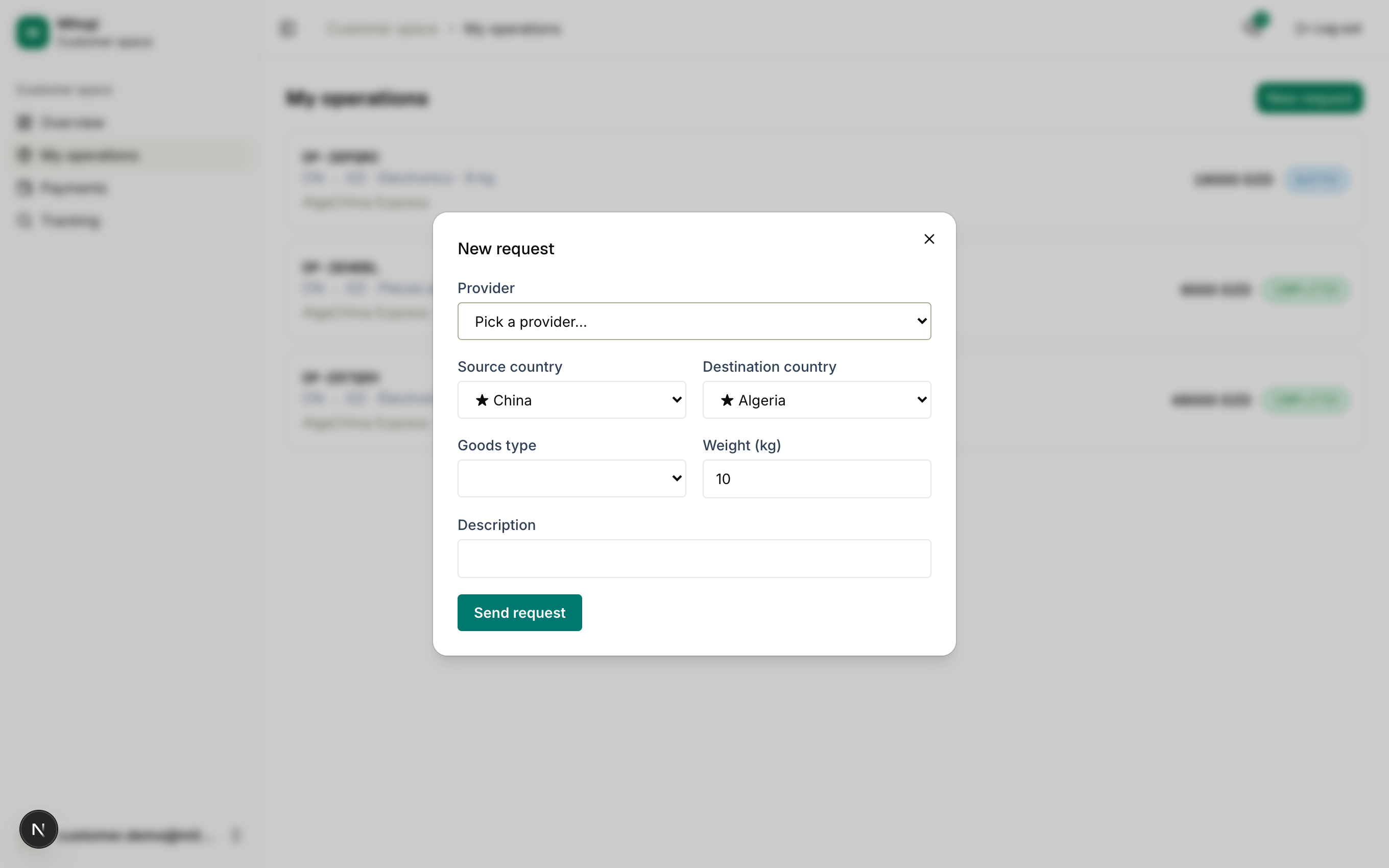
The operation appears in your list with status REQUEST and the provider is notified by email.
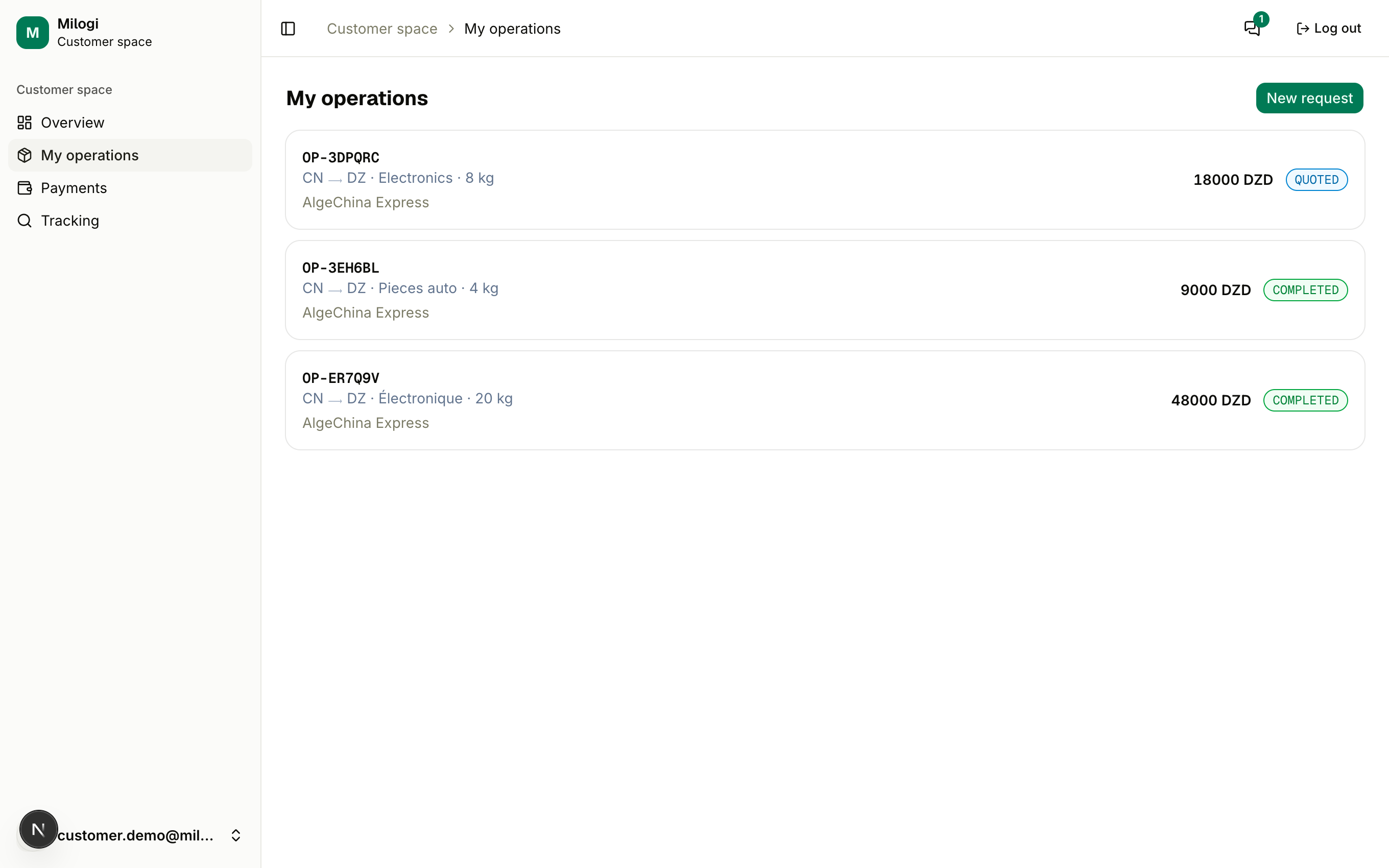
Monthly limit
The free plan allows a platform-defined number of requests per month and active operations. If you reach it, the request is refused with a message — wait for operations to complete, or contact the Milogi team.
Accepting a quote
When the provider answers you receive an email (Quote received for OP-…) and the operation turns QUOTED. Your Overview counts it under Quotes to review.
- Open the operation.
- The quote card shows the amount and currency, e.g. Quote: 18 000 DZD.
- Click Accept quote.
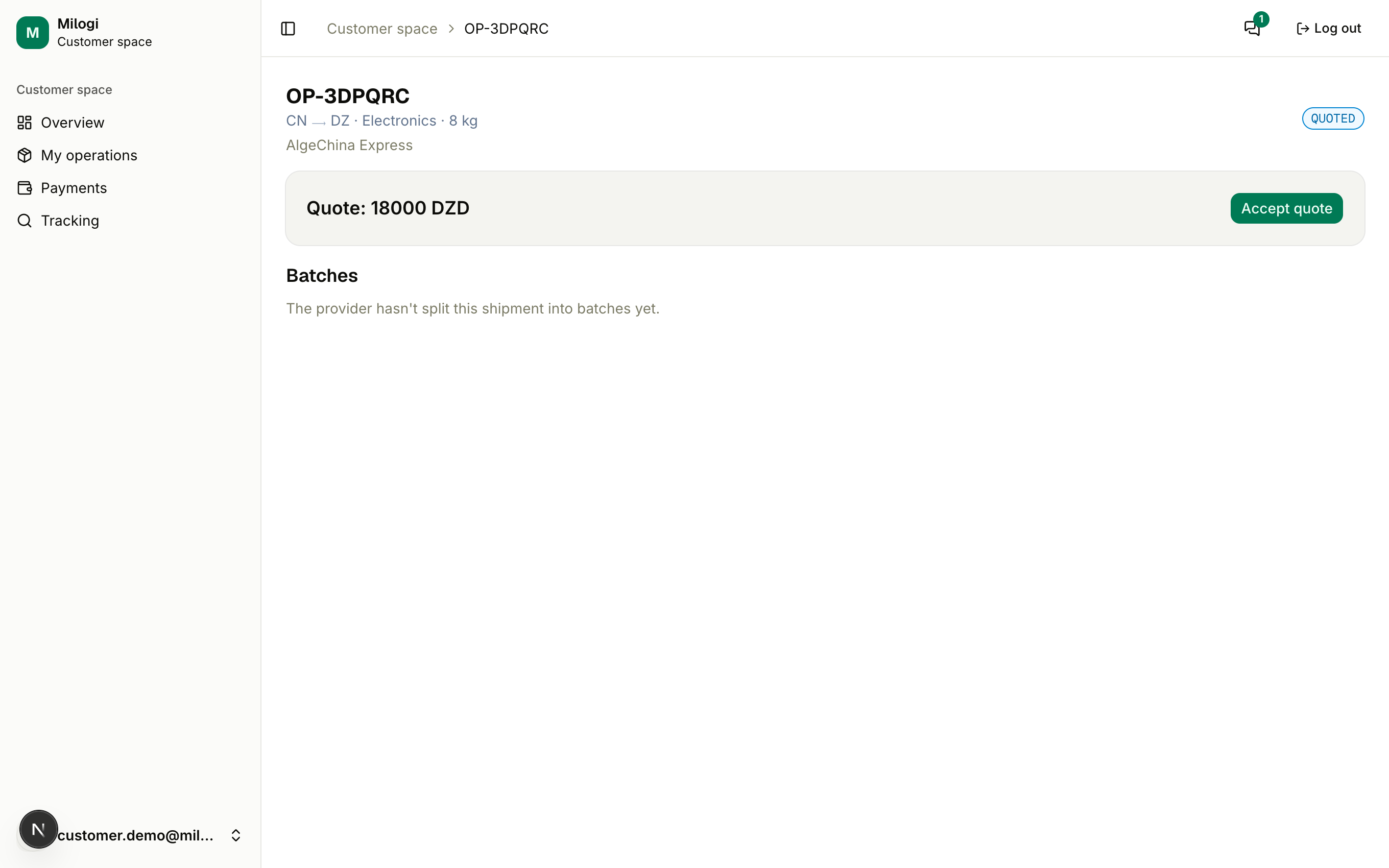
The operation becomes ACCEPTED; the amount is recorded as what you owe the provider (see Payments). The provider can now split your shipment into batches.
Not happy with the price? Leave it as is and talk to the provider through Messages — they can update the quote, and the new amount replaces the old one on the same card.
After acceptance
The operation page grows as things happen — see Following your delivery: batches with tracking codes and timelines, your QR ticket, the payment status, incident notices, and finally the review form.