
Appearance
Your account
One Milogi account = one email address. Roles (provider, traveler, customer) are profiles attached to that account, and you can hold several of them.
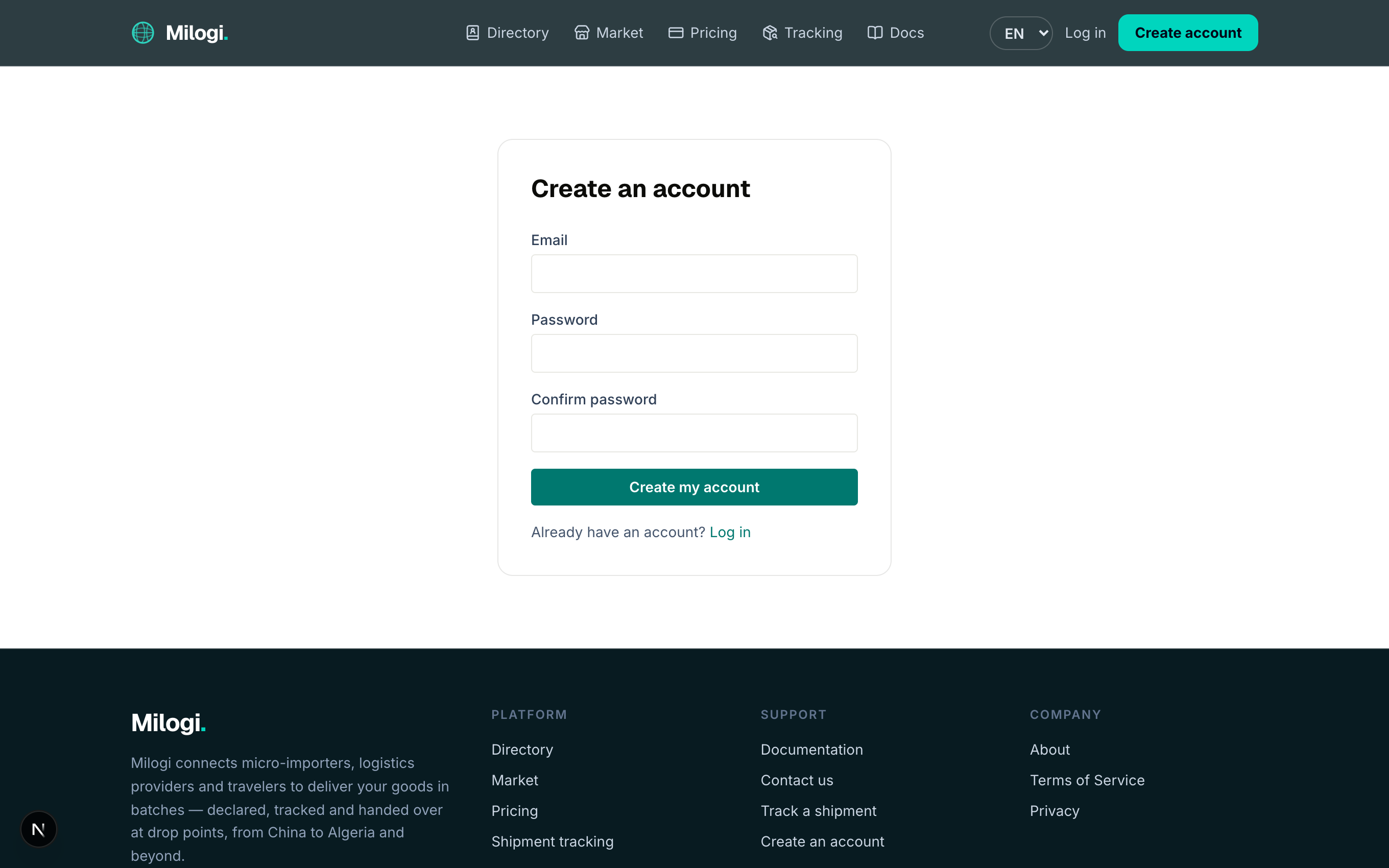
Create an account
- Open the site and click Create account in the header (or Create a free account at the bottom of the landing page).
- Enter your email and a password of at least 8 characters, confirm it, and click Create my account.
- You land on the onboarding page to pick your first role.
TIP
The language you registered in becomes the default language of your notifications. You can switch the interface language at any time (see below).
Onboarding: pick your role
The onboarding page shows the three roles. Pick one and fill in the short profile form:
| Role | Fields |
|---|---|
| Customer | Display name, country of residence, mobile phone |
| Service provider | Business name, business type (import company, logistics bureau, freelancer, micro-importer…), country, mobile phone |
| Traveler | Display name, country of residence, mobile phone |
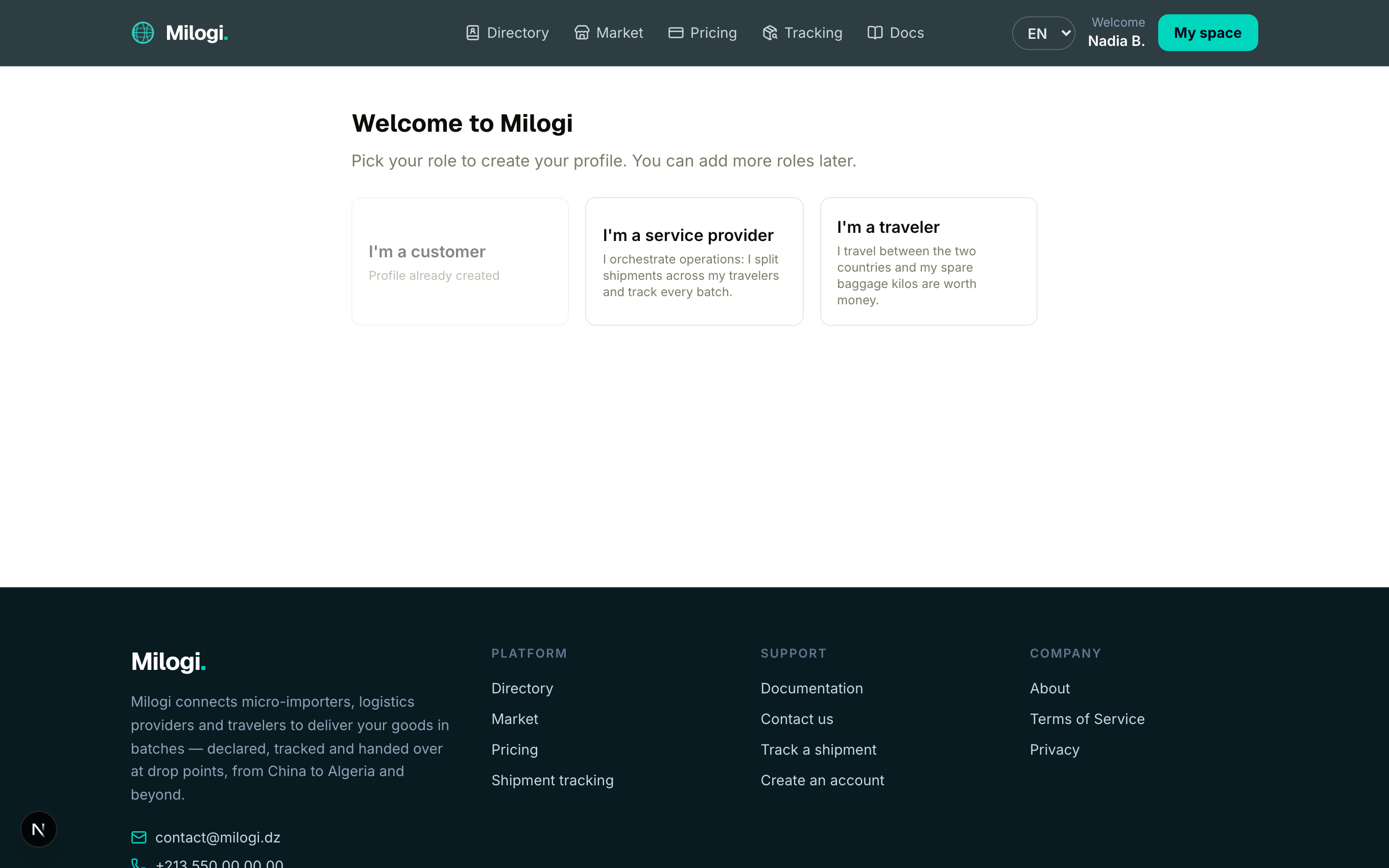
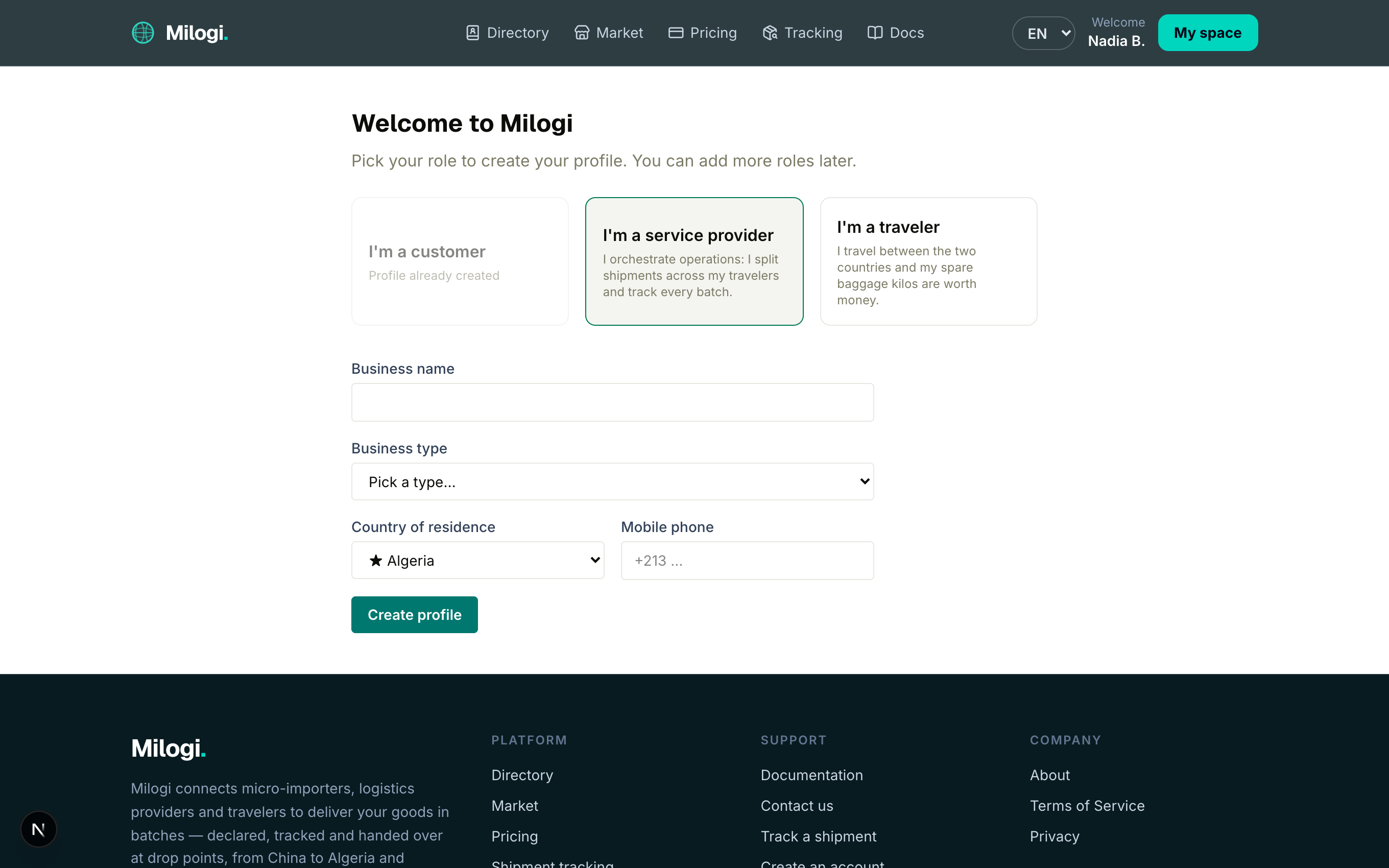
Click Create profile: you are taken straight to the workspace of that role.
🎬Video coming soon
Adding another role later
Go to /onboarding again (it is also where you land if your account has no role yet). Roles you already have are greyed out with Profile already created; pick a new one and fill in its form. Each role has its own workspace and its own sidebar.
Provider verification
New provider profiles start as Pending. The Milogi team reviews them and marks them Verified — a green check shown in the directory and on your profile. You can use the workspace while pending.
Log in
Click Log in in the header, enter your email and password. After login you are redirected to your main workspace:
- platform administrators → the Milogi console,
- providers → the Provider workspace (
/p), - otherwise travelers → the Traveler workspace (
/t), - otherwise customers → the Customer space (
/c).
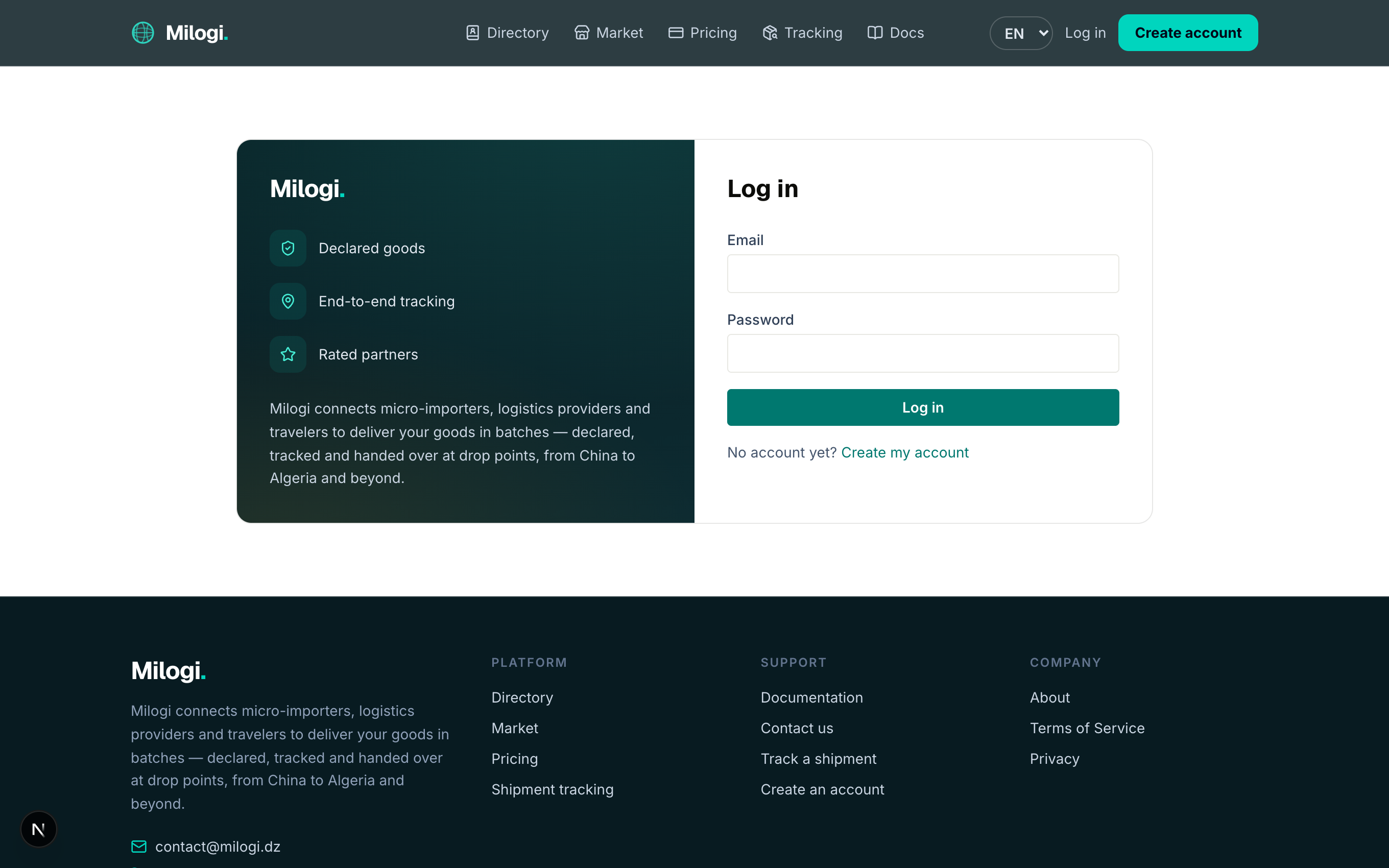
Once logged in, the public pages (landing, directory, market, pricing…) greet you by name and the header shows a My space button that opens your workspace.
Temporary passwords
If an administrator created your account for you, a Renew your password dialog appears at first login and stays until you choose a new password.
Switching between your roles
If you hold several roles, each has its own address: /p (provider), /t (traveler), /c (customer). The My space button in the site header always opens your strongest role; use the addresses above (or bookmarks) to switch.
Language: French, Arabic, English
The FR / AR / EN dropdown in the header switches the interface language instantly and keeps you on the same page. Arabic is fully right-to-left: text, layout and the workspace sidebar (which moves to the right).
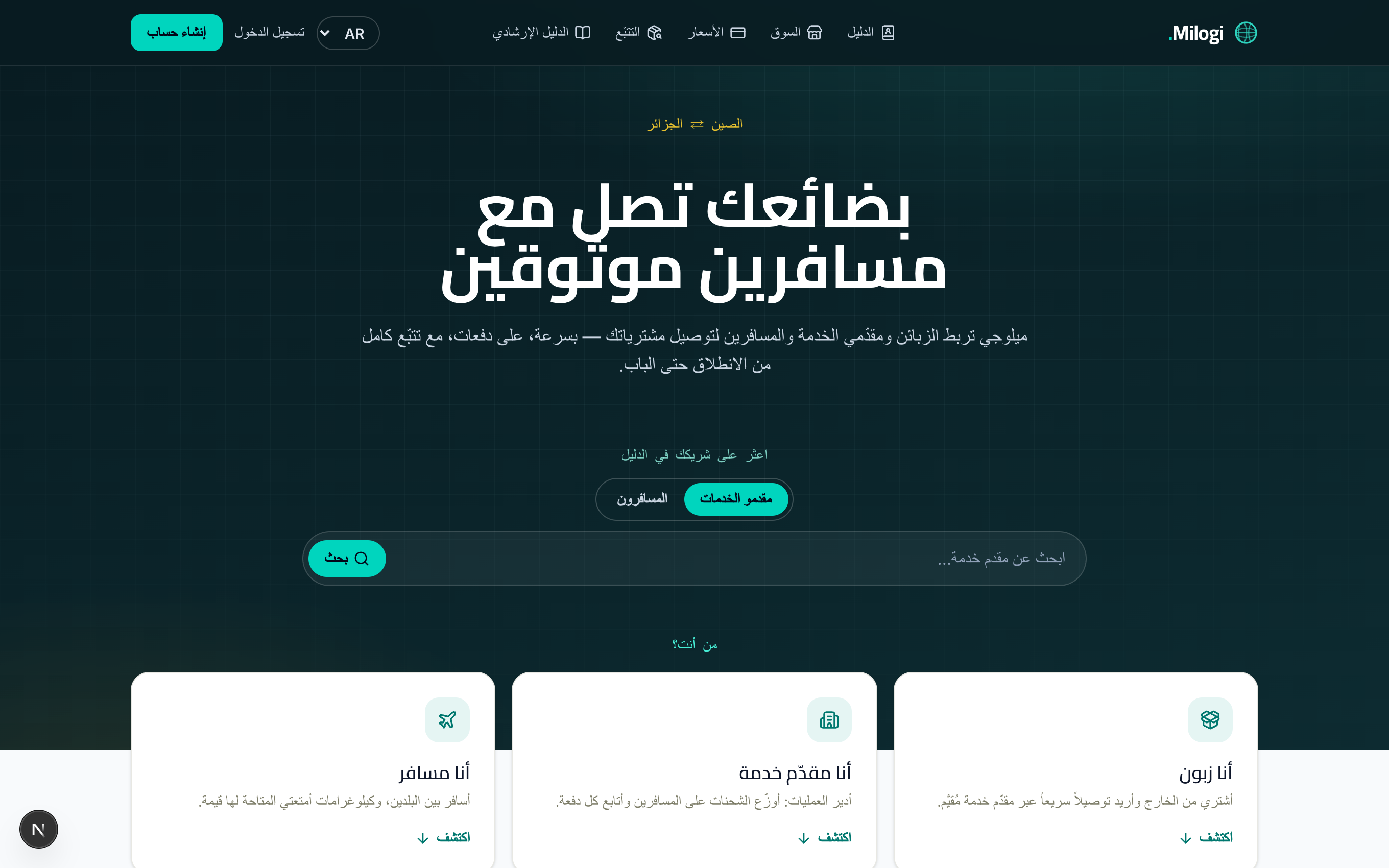
Catalog values (countries, goods types, business types) are translated in the three languages. Your choice is stored in the address (/fr/…, /ar/…, /en/…), so a link you share opens in the language you were using.
Your profile page
Open Profile from the user menu at the bottom of the workspace sidebar (or go to /profile).
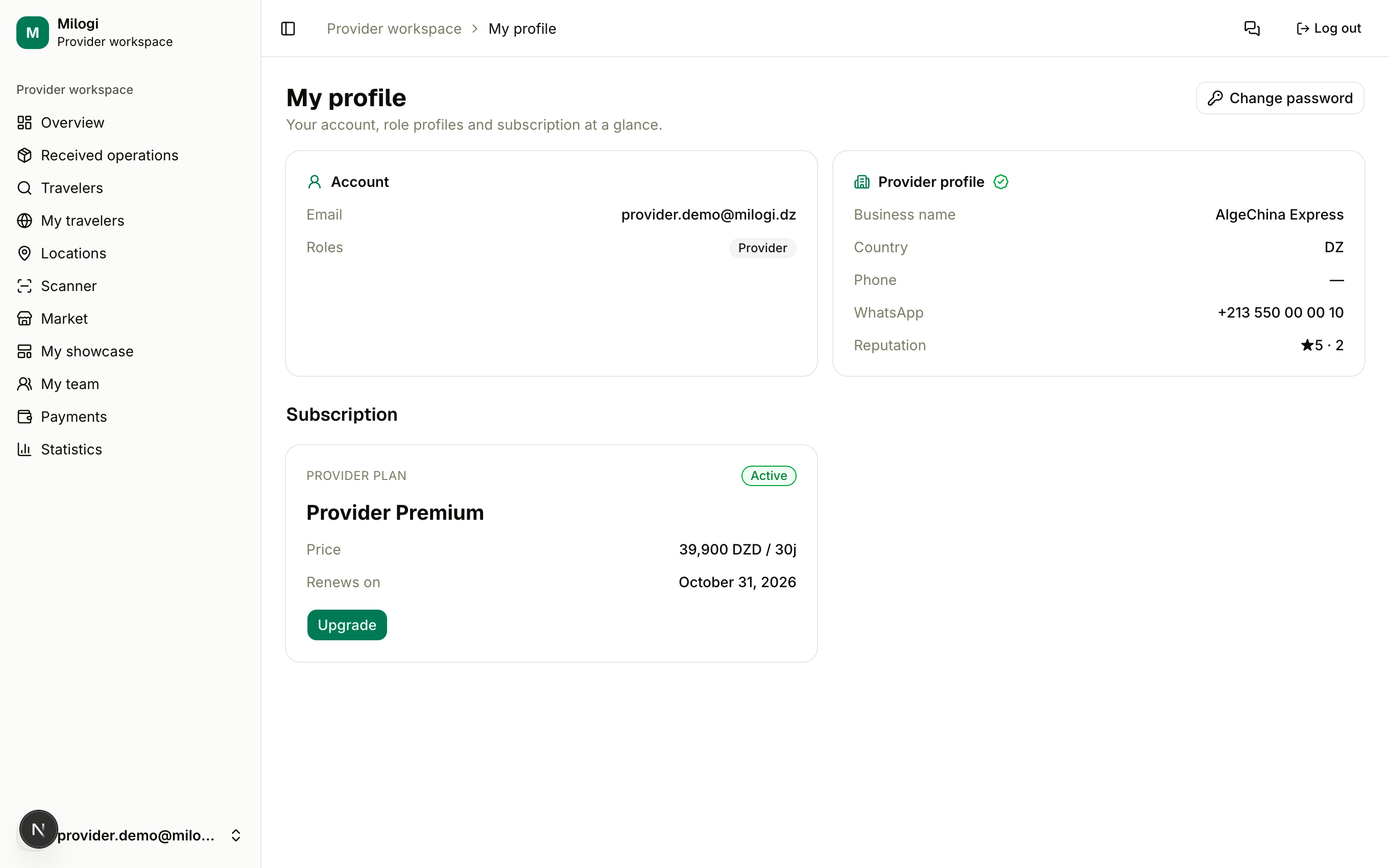
The page shows:
- Account — your email and the roles attached to it.
- One card per role profile — business or display name, country, phone, WhatsApp number, and your reputation (★ rating · completed operations). Verified providers get a green check.
- Subscription (providers and travelers) — one card per subscribing role with the plan name, its status badge (Free, Trial, Active, Expired, Cancelled), the price per period and the renewal date (or trial end date). The Upgrade button opens the pricing page.
Change your password
Click Change password at the top of the profile page, enter your current password and a new one (8 characters minimum), and save.
Messages, notifications, log out
- Messages is available from the user menu in every workspace; unread conversations are counted in the sidebar badge. See Messages.
- Milogi emails you on the important events of your operations (new request, quote received, delivery completed, subscription expired).
- Log out is in the same user menu.