
Appearance
Batches & dispatch
Once an operation is ACCEPTED, you split its weight into batches — each one travels in a single traveler's baggage and has its own public tracking code (MLG-…). Everything happens in the Batch dispatch section of the operation page.
🎬Video coming soon
Creating a batch
- Open the operation (status ACCEPTED or DISPATCHING).
- Under Batch dispatch, the label on the right tells you how many kg are left to split.
- Enter the Batch weight (kg) (0.5 kg steps, never more than what is left) and the Piece count (how many physical units — cartons, bags — are in this batch).
- Click Create batch.
The batch appears below with status CREATED, its code and weight. The operation moves to DISPATCHING as soon as the first batch exists. Repeat until 0 kg are left — a shipment of 20 kg can become two batches of 10 kg on two different trips, or one batch of 20 kg.
Pieces matter
Each piece is tracked individually: the traveler can flag a piece as damaged or missing while the rest of the batch is delivered normally, and the customer sees it on their side. Count them carefully.
Declaring the contents
Before a batch can be picked up by a traveler, you must certify that its contents were inspected. Click Declare contents inspected on the batch; the label contents declared then appears next to its weight. This is Milogi's trust rule: no batch leaves before the provider declares its contents.
Assigning a batch to a trip
A CREATED batch shows a trip picker under its card:
- Open Pick a trip… — it lists open trips on the same route (origin and destination countries of the operation) with enough free capacity for this batch: traveler name · departure date · remaining kg. Both public travelers and your in-house travelers appear.
- Pick one and click Assign.
The batch becomes ASSIGNED, the trip's free capacity drops, and the traveler sees the batch under Batches to carry on their dashboard.
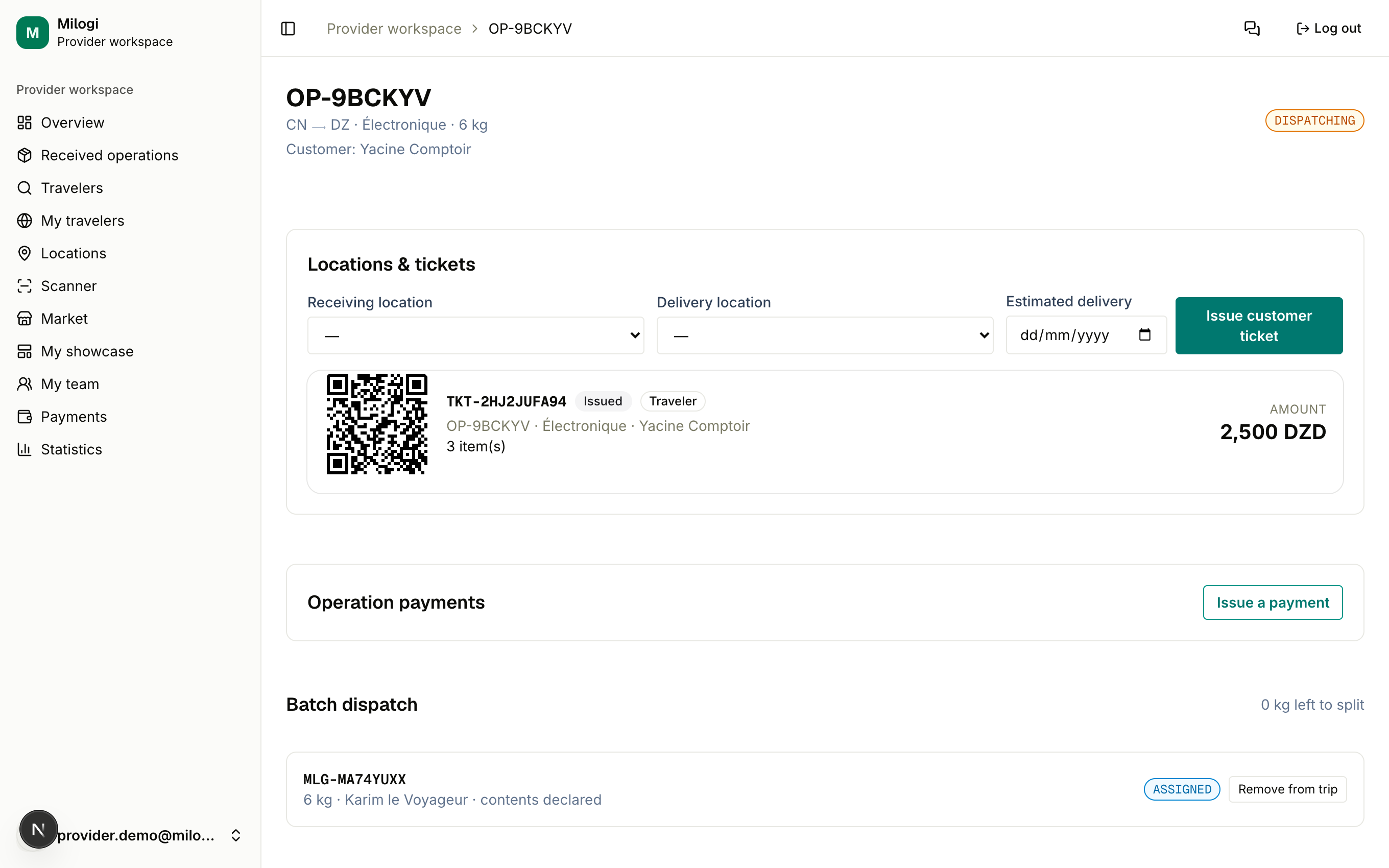
- Remove from trip (available while the batch is ASSIGNED) puts the batch back to CREATED so you can assign it elsewhere.
- Cancel batch (available while CREATED) cancels it; its weight becomes available to split again.
No trip in the list?
The picker only shows OPEN trips whose departure is in the future and whose remaining capacity is at least the batch weight. Use Find travelers to look around, or plan a trip for one of your in-house travelers.
Following the batch
From PICKED UP onwards the traveler drives the status: Picked up → In transit → Arrived → Cleared customs → Delivered — each change is timestamped and visible on the public tracking page (/track/MLG-…), in the customer's space and on your operation page.
The final DELIVERED step is normally done by you, when the traveler hands the goods over at your location — by scanning their traveler ticket (Locations & QR tickets). When a batch is delivered:
- pieces still pending become delivered (damaged/missing flags are kept),
- a payout line You → traveler opens in the ledger with amount 0 — you fill in the agreed amount (Payments),
- the traveler's completed-operations counter increases,
- the operation becomes PARTIALLY DELIVERED or COMPLETED depending on the other batches.
Issuing the traveler ticket
Once a batch is assigned, click Traveler ticket on it. A TKT-… QR ticket is created for the traveler with the number of pieces and the amount owed (the sum of the open payout lines for that traveler on this operation, which you can adjust in the ledger). The traveler sees it on their dashboard; when they arrive you scan it to receive the goods and pay them.
Only one open traveler ticket can exist per batch.
Batch statuses at a glance
| Status | Set by | Notes |
|---|---|---|
| CREATED | you (create) | can be cancelled or assigned |
| ASSIGNED | you (assign) | can be removed from the trip |
| PICKED UP | traveler | requires contents declared |
| IN TRANSIT / ARRIVED / CUSTOMS CLEARED | traveler | timestamped events |
| DELIVERED | you (scan) or traveler | opens the payout line, closes pieces |
| RETURNED | traveler | after pickup, when goods come back |
| CANCELLED | you | before pickup |
See Vocabulary & lifecycles for the full diagram.