
Appearance
Operations & quotes
An operation is one delivery job. It starts as a customer request (or as a walk-in operation you create yourself), gets a quote, and — once accepted — is split into batches. The statuses are explained in Vocabulary & lifecycles.
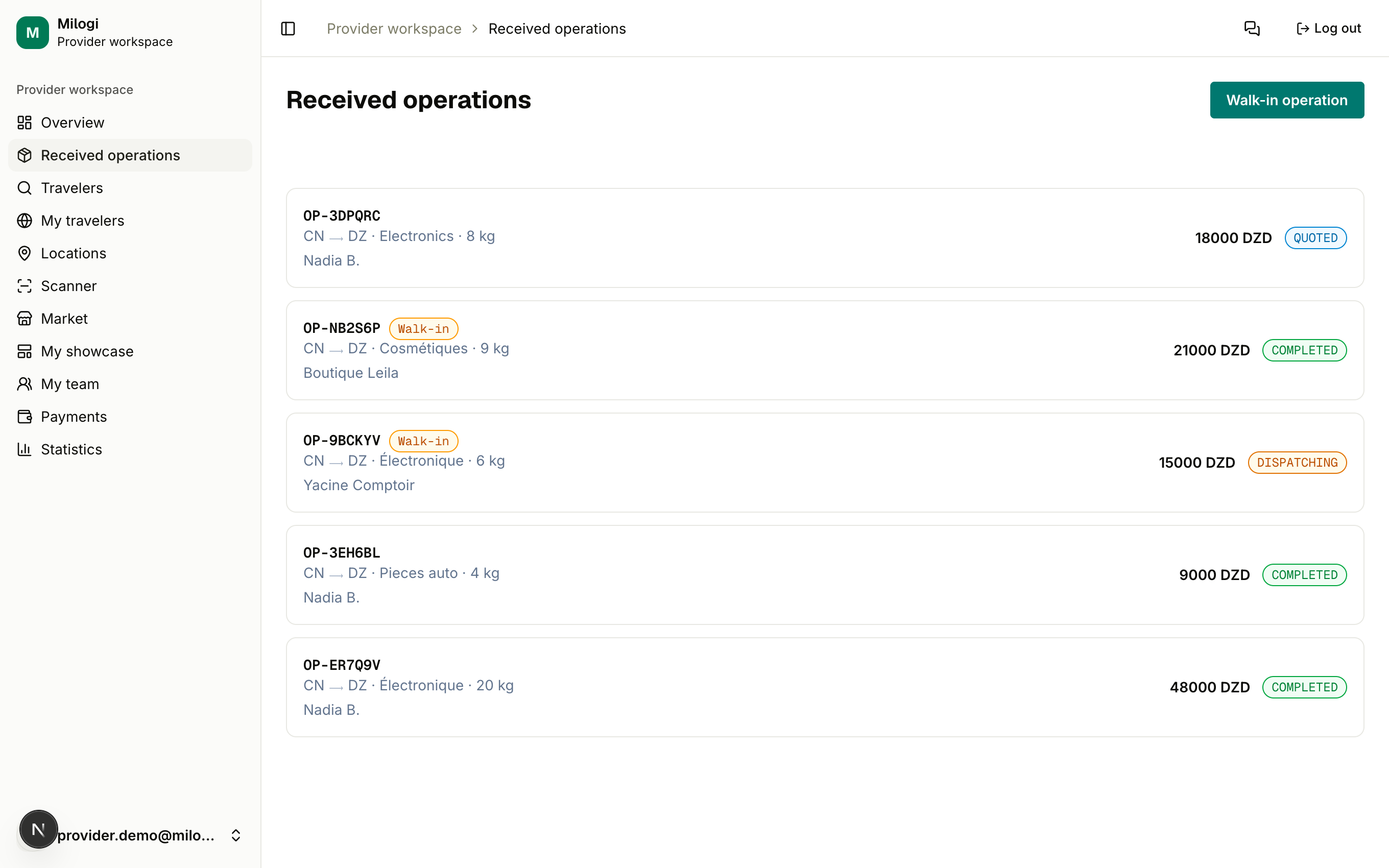
The operations list
Received operations (/p/ops) lists every operation addressed to your business, newest first, with its code, route, goods type, weight, customer name and status pill. Walk-in operations carry a Walk-in badge. Click a row to open the operation.
Answering a request with a quote
When a customer sends you a request you receive an email (New request OP-…) and the operation appears with the REQUEST status.
- Open the operation.
- In the quote form, enter the Quote amount and the Currency (3-letter code,
DZDby default —EUR,USD,CNY… are fine). - Click Send quote. The status becomes QUOTED and the customer is notified.
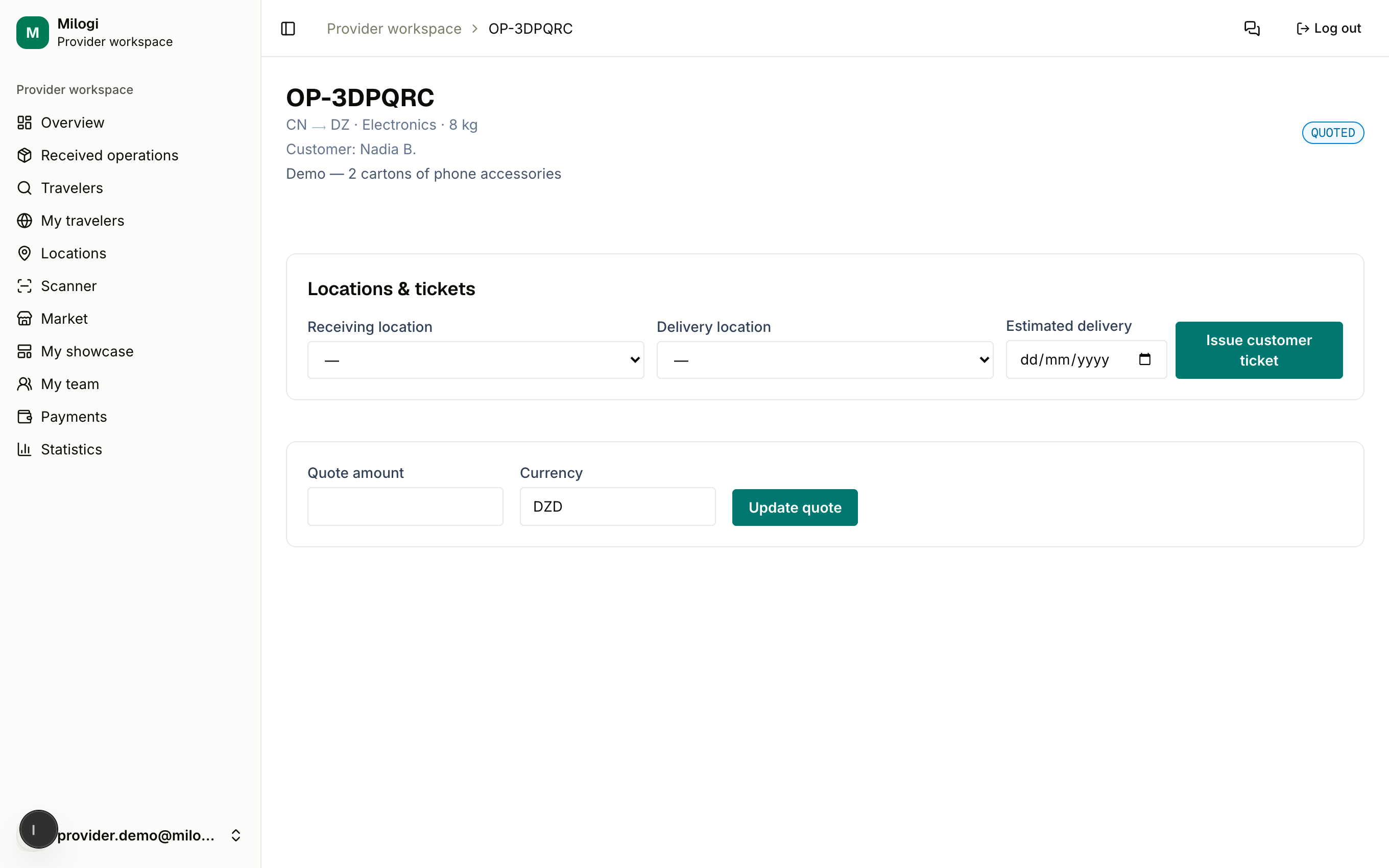
While the operation is QUOTED the same form lets you Update quote as many times as you need. Once the customer clicks Accept quote:
- the status becomes ACCEPTED,
- the quoted amount is written to the ledger as Customer → you, Pending,
- the Batch dispatch section appears so you can start splitting the goods (Batches & dispatch).
Read the request carefully
The header of the operation shows the route (CN ⟶ DZ), the goods type, the total weight and the customer's description. The weight is what you will have to split across batches.
Creating a walk-in operation
For a customer who is not on Milogi (someone at your counter, a phone order…), create the operation yourself:
- On Received operations, click Walk-in operation.
- Fill in the Customer name, an optional Phone, the Source and Destination countries, the Goods type, the Weight (kg), the Agreed price and its Currency.
- Click Create operation.
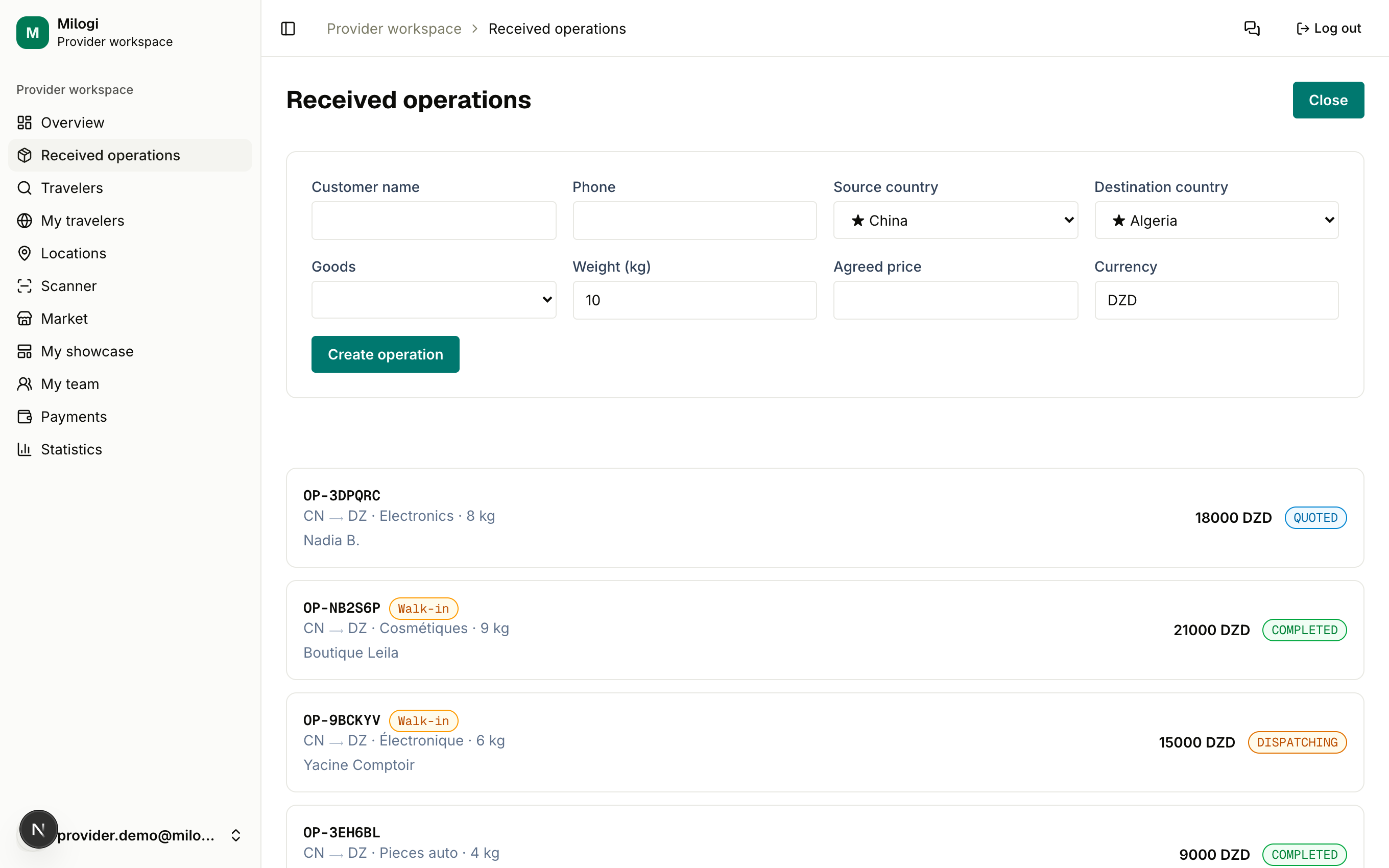
The operation is created directly in ACCEPTED state with the agreed price recorded in the ledger — there is no quote round-trip. Everything else (batches, tickets, payments) works exactly like a regular operation. Walk-in operations cannot be reviewed, since there is no customer account to review.
Inside an operation
The operation page groups everything about one job:
| Section | Purpose |
|---|---|
| Header | Code, route, goods, weight, customer, description, status pill |
| Review this operation | Appears once the operation is COMPLETED (customer operations only) — rate the customer 1–5 ★ with an optional comment |
| Locations & tickets | Choose the receiving and delivery locations, set an estimated delivery date, issue the customer ticket, see every ticket of the operation |
| Quote form | Send / update the quote (REQUEST and QUOTED only) |
| Operation payments | Record a payment to a traveler (DISPATCHING onwards) |
| Batch dispatch | Create batches, declare contents, assign to trips, issue traveler tickets |
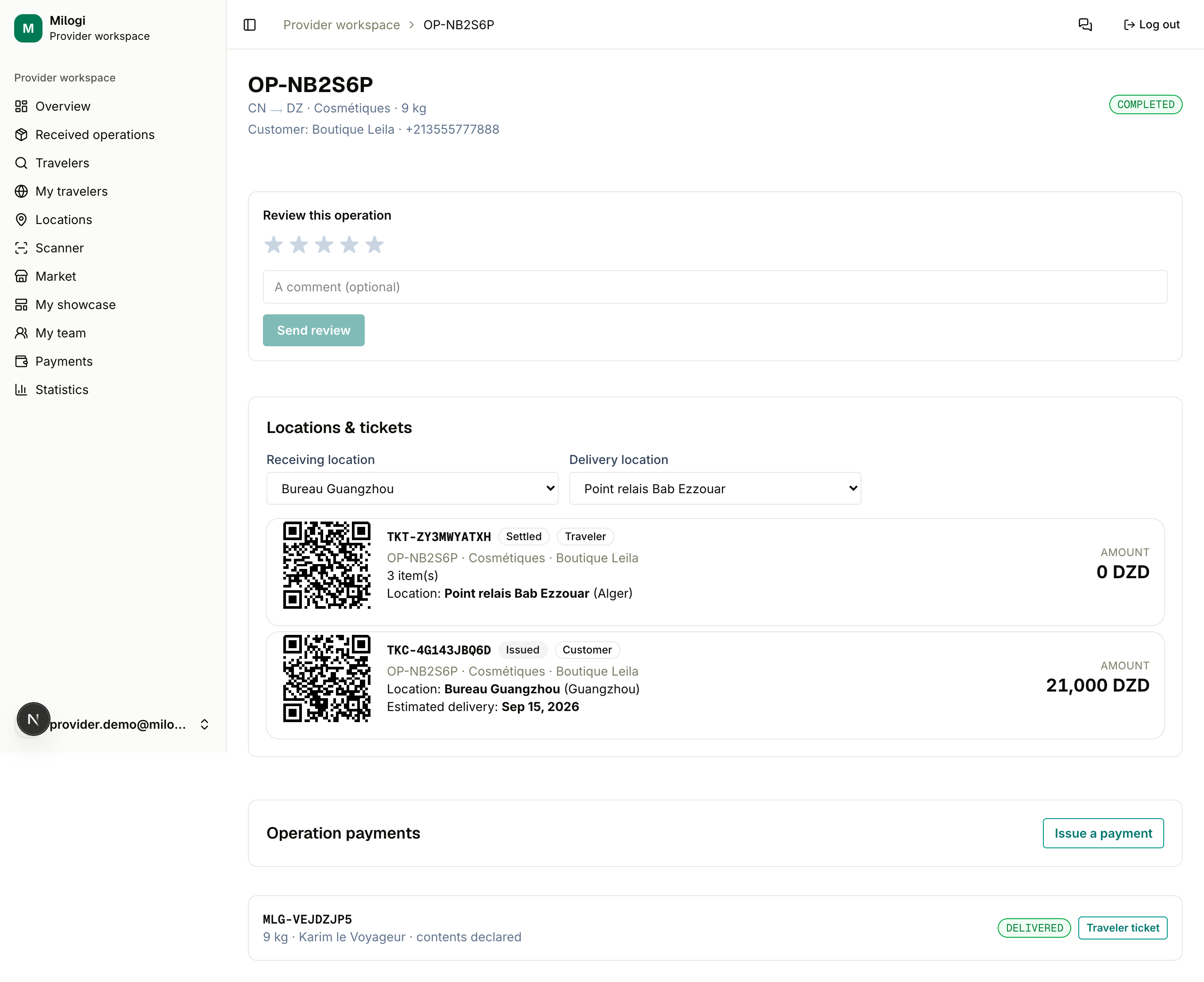
Locations and estimated delivery
Pick a Receiving location (where the goods enter your custody) and a Delivery location (where the customer will pick up). Both come from your Locations and are saved as soon as you change the dropdown. The customer ticket is attached to the receiving location and the traveler tickets to the delivery location — this is what lets you restrict staff to their location's tickets.
The Estimated delivery date is optional; it is printed on the customer ticket.
Reviews and reputation
When an operation reaches COMPLETED, both the customer and you can leave one review. Your rating (average of the reviews you received, one decimal) and your completed operations count are shown on the dashboard, in the directory and on your showcase — they are what customers use to choose a provider.
Notifications you will receive
| Event | |
|---|---|
| A customer sends a request | New request OP-… |
| Every batch of an operation is delivered | the customer is told Operation OP-… delivered; the operation turns COMPLETED on your side |
| Your subscription expires | Subscription expired — plan name |